Start with the entities that matter
Choose the entities to include. Their relationships appear together in the diagram.
For Dataverse and Dynamics 365 delivery teams
Flownominal brings Dataverse context and practical development tools into your compatible AI chat. Inspect the existing setup, work through a reviewable plan, apply supported changes within the agreed access, and keep the evidence for handover.
For developers, technical consultants and advanced makers working with Dataverse and the Dynamics 365 apps built on it.
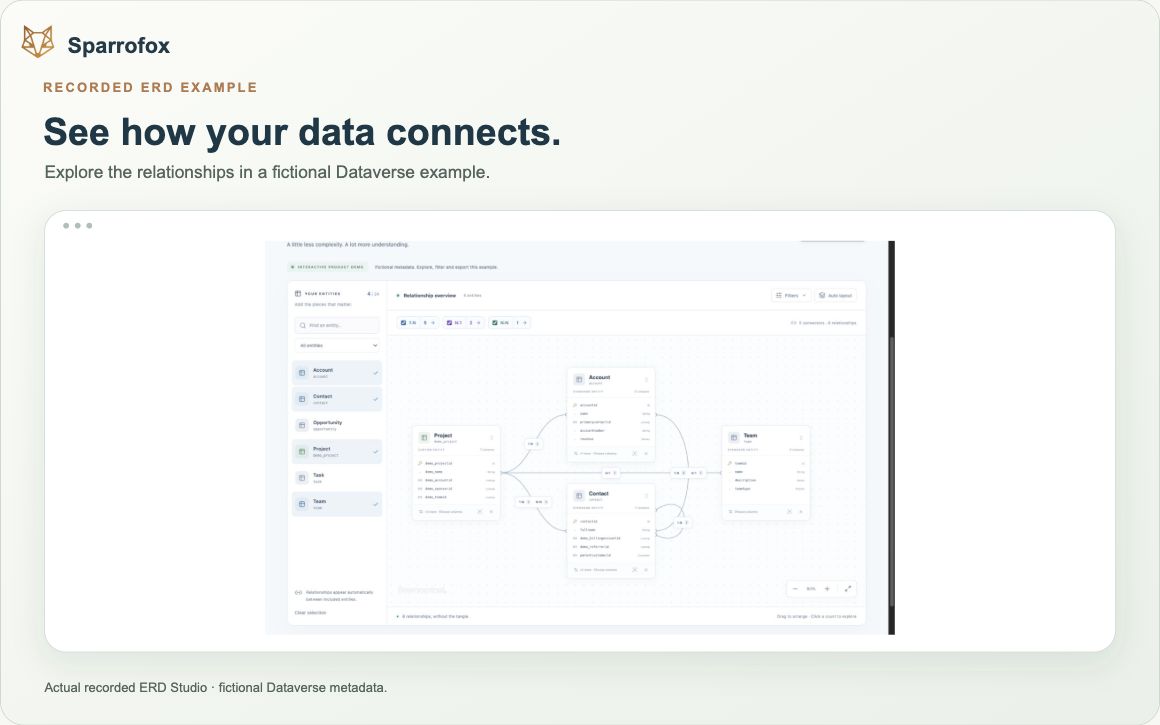
Actual product screens · fictional metadata
Explore a fictional model connecting accounts, contacts, projects and teams. Add or remove an entity, open a relationship count, then try the filters.
Each screenshot shows a fictional selection. The screens use different selections and counts; they are not a controlled comparison.
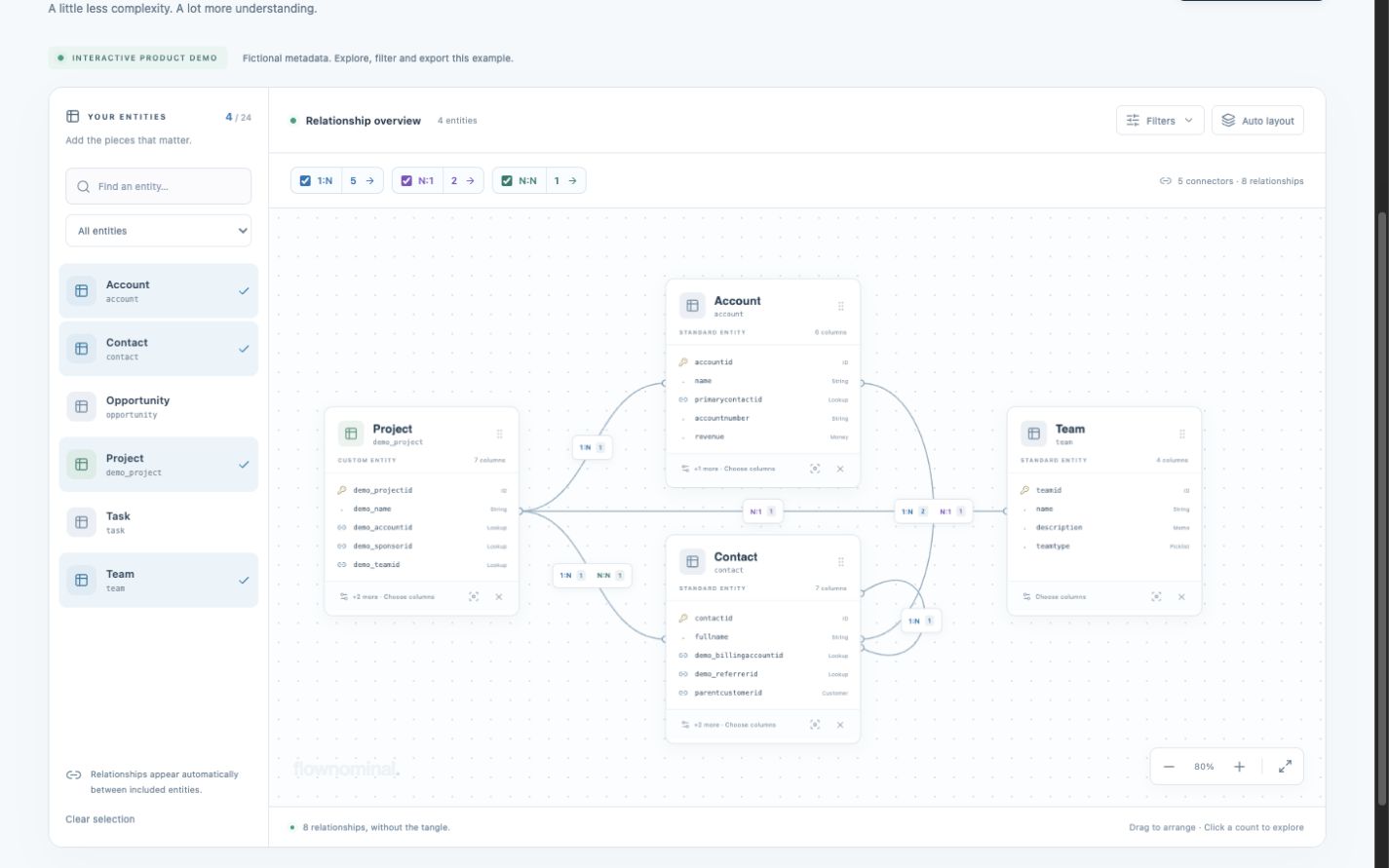
Choose the entities to include. Their relationships appear together in the diagram.
Relationships are grouped between entity pairs. Open a 1:N, N:1 or N:N count to inspect the definitions.
Show the fields that matter, including lookups and fields used on forms. Custom and required-column filters are available too.
Export a PDF with your chosen diagram and columns, plus an optional relationship appendix.
Compatible AI connections · supported actions
Inspect tables, columns, relationships, forms, JavaScript and related solution context before deciding what needs to change. Explore the same work in the visual workspace and your compatible AI conversation.
Capture the problem, proposed fix, supported steps and acceptance checks. Review the plan for the chosen environment, then apply the authorised scope through the supported tools.
Retain operation receipts, read-back observations and reported test evidence as separate records. Export a useful handover for the next developer, support person or reviewer.
Illustrative workflows, not customer case studies
MCP permissions are scoped to the selected connection and do not elevate the signed-in account’s Dataverse privileges. Confirm the compatible client, environment, permitted actions and result checks before use.
Flownominal brings compatible AI chat and a development workspace together to explore existing Dataverse components, review supported change proposals and retain progress and handover evidence. Start with one task in an existing or independently selected Dataverse development environment. Agree the operator, environment, access, compatible client and supported operation before an evaluation. Saved connections and saved workspace artifacts, including snapshots and audit records, are shared within the operator workspace; customer access and hosting arrangements need separate agreement and checks.
Saved workspace artifacts do not mean customer business records are stored here. Exact access, operations and customer fit need confirmation.
Discuss an integration taskBrowse the catalogueDiscovery, implementation, licences, usage and optional support are agreed separately.
Find a relevant foundation and one process. Explore what it covers and its readiness, then check the fit against your current tools.
Agree a paid discovery to examine one process, compare your current approach and define the deliverable, fit and acceptance criteria.
Approve a separate implementation scope and price before configuration or adaptation begins. Your team reviews the agreed output before handover.
Your team reviews the agreed output and receives the agreed training and operating guidance. Ongoing support is optional and separately agreed. Product licences, third-party licences and usage costs are listed separately.
Agree a compatible client, operator, development environment and supported task before evaluation. The existing app destination is preserved; this page does not establish current runtime parity.
Open FlownominalSaved workspace artifacts do not mean customer business records are stored here. Exact access, operations and customer fit need confirmation.
